From: Dr Christopher Mabb,
Scientific Word Ltd.
To: Our Scientific Word/ WorkPlace/ Notebook Technical Typesetting list
Advent 2026
From: Dr Christopher Mabb,
Scientific Word Ltd.
We replied:One of our professors is experiencing a problem with Scientific WorkPlace 5.0. When he clicks Typeset PDF Preview, the following error message appears:“Error while attempting to executeThis error did not occur previously, and the Typeset PDF Preview function used to work correctly.
C:\Program Files\Tracker Software\PDF Editor\PDFXEdit.exe
"C:\AA_DATEN\DOCUMNTS\PAPERS\p75\test.pdf"
The system cannot find the specified file.”
I have attached two screenshots showing the error message for your reference.
Could you please advise us on how to resolve this issue? If you need any additional information, I would be happy to provide it.
We didn't hear back – so we assume that solved the problem.Well of course, it makes me wonder what has changed. Did the user recently install/uninstall/update the PDF Editor program?
There are two ways to try to resolve this (bear in mind that you have version 5.0 and so must make the adjustments from the documentation we give you below for version 5.5: \swp50 rather than \swp55):
- We’ve covered this a few times in our past mailings, most recently the Midsummer’s Day 2026 mailing tem 5, which says:
Please see:
- Our Midsummer’s Day 2025 mailing Item 5 to distinguish between:
- Scientific WorkPlace is creating the PDF in c:\swp55\docs but just not showing it to you; or whether
- SWP is not succeeding in creating the PDF in c:\swp55\docs.
- If:
- It’s No.i above, then see our May 2022 mailing Item 7 and our December 2025 mailing Item 4
- It’s No.ii, see our November 2021 mailing Item 8 (with its link to our November 2010 mailing Item 3).
- If the above fails, then reinstall Scientific WorkPlace v5.0. The installation does a pretty good job of locating your PDF formatter/viewer and linking up with it correctly.
Initially we replied saying:How do I get the Scientific Workplace 5.5. icon to show on all my TeX files so that I can double click on the file and open it directly?
I did this a long time ago and have forgotten!
But the user responded:To (re-)assign .tex files to open with Scientific WorkPlace, please see our December 2025 mailing Item 8.
So we gave the following more robust directions:I went to Settings opened Default Apps added a .tex and did a search-it could not find Sxcientific Workplace-although the icon is on my desktop and it works well...
which he confirmed worked.Apologies for the inconvenience. Let’s try this:
- Double check that your SWP shortcut on your Desktop points to c:\swp55\swp-pro.exe (To do this: right-click on the shortcut and go to Properties. Read the Target .exe file.) Make a note of this address.
- In File Explorer, go to any .tex file (eg. C:\swp55\SWSamples\checkout.tex). Right-click – Open with – Choose another app. Scroll down to “Choose an app on your PC”
- At the “Open With” dialog, navigate to the address above in bold (c:\swp55\swp-pro.exe) – Open – Always
- That should open checkout.tex in SWP. Close SWP.
- Now try double-clicking on a .tex file.
It didn't ring any bells, so we asked him to:In solving an integral in SWP 5.5 it gave me the following result 4.9578×10⁻² but with the 4 between two bars as an absolute value. Could you give me the meaning of this?
Once we had the document, it became clear. We replied:Please send us the Scientific WorkPlace document (the .tex file, which is probably in c:\swp55\docs) so that we can see what is going on.
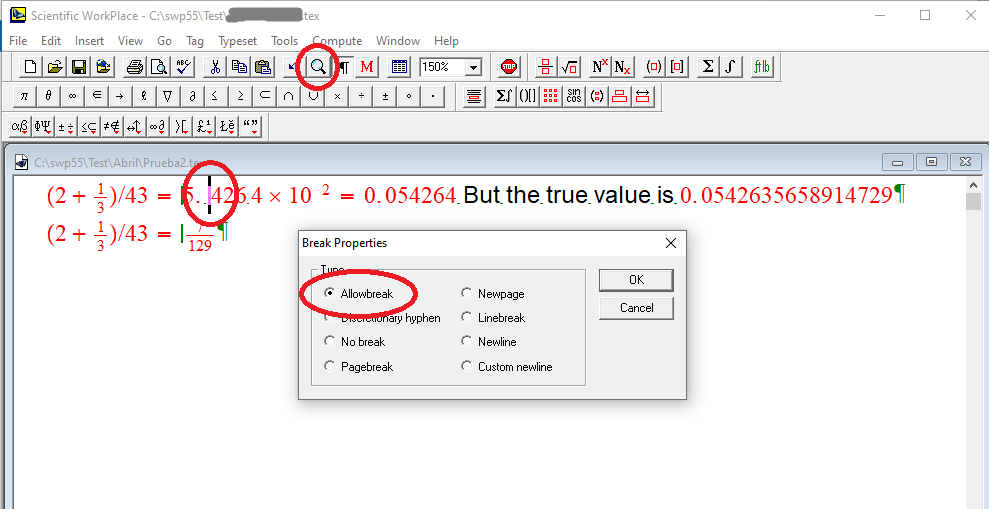
Thanks for your reply with .tex file. Those are not absolute value (‘mod’) symbols which print, but non-printing spacing characters, indicating an Allowbreak (where Scientific WorkPlace is allowed to break the line if it’s going into the right hand margin); see screenshot Mod6.png. To see this, highlight the green line and either click the magnifying glass or right-click – Properties.
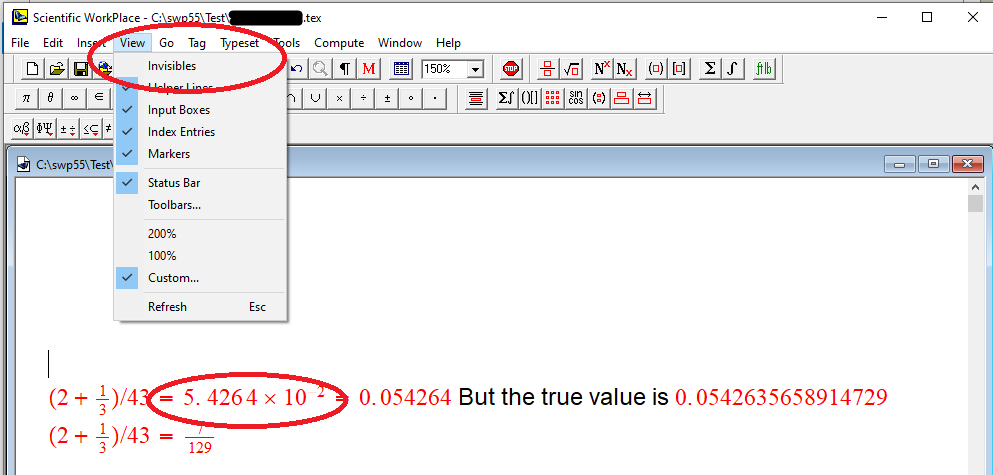
If you turn off (un-check) View – Invisibles, you will find these green spacing characters disappear; see screenshot Mod7.png.
Some of the physics/electronics details here were over our head. But we're confident we addressed the Scientific WorkPlace issue, replying:The eV value from Scientific WorkPlace matches the 1986 CODATA recommendation. The current eV-to-joule conversion has been exact since the revised SI took effect on 20 May 2019.
Is there a way to change it within the 'unit' drop-down?
For more information about buying the Scientific WorkPlace v5.5 Training videos, please go here.Alternatively, you could create and save a new fragment. To do this you might want to re-watch Module 2-4 of the Training Course videos (from 1m7s – end), for which we sent you the download links <snip>.
- This is not my subject area, so I don’t know which constant you mean. But the principle is the same; I’ll use Boltzmann constant eV fragment as an example.
- The Fragments which are constants are stored in C:\swp55\Frags\Constants. So go to C:\swp55\Frags\Constants\Boltzmann constant eV.frg
- Keep a backup and then open this file with, for example, WordPad. Replace the LaTeX code with the LaTeX code for the constant you want. (If your LaTeX isn’t up to that, open a blank document in SWP; write the constant you want; save the blank document and open it with WordPad to see the required LaTeX code.)
We encouraged him to try installing the free 30-day demo of Scientific WorkPlace v5.5. He followed up to say that:...if you know if anyone has tried running it [SWP] in wine and if there are any issues with doing that which they have encountered? Given the way windows has been going lately I’ve been doing my best to migrate everything that I can to Linux.
But when he came to Register, the licence server declined to issue a 30-day licence. After some to-ing and fro-ing, it turned out that his 'unique' computer ID had been used before; we suggested that could be because:It seemed to install successfully with Wine after adding some missing dependencies that aren’t installed by default anymore.
The user did some research, and Emailed back to say:
- You’ve previously had a SWP 30-day trial on this computer
- Someone else had the same ‘unique’ computer ID
- It defaults to computer ID <snip> in Wine.
At this point he reverted to running in Windows, and bought a permanent licence. But he commented that it:Thanks, it works now!
You were right. it’s c. I was about to go boot up a windows box and redo things there, but then I realized I might as well try to identify what it might be using to define a host ID since there aren’t too many things that could reasonably be.
It appears to be a hash of the volume serial number, which in wine defaults to hex 00000000 for all installs. Overwriting that with a random number and restarting gives a new machine ID. The automatic web query to register it still fails, but the manual registration form works, and the license key it now generates for the unique host is valid and does enable the features (Available for 30 days as expected according to the System Features list).
I expect very few people are still reading at this point. But it's possible that someone in the future will Google "how to run Scientific WorkPlace v5.5 on a Linux machine", and will read this item with delight....neatly proves it’s possible to do in wine, there seemed to be some remaining graphics issues I’ll need to return to at some point to really get that to work right though.
We replied:May I use Scientific Word to create presentation slides?
You’re asking about Beamer, which is part of Scientific Word v5.5.
To create a Beamer presentation, click on File – New – Other Documents – Slides-Beamer and use this as a template/shell document; you can Typeset – PreviewPDF this document in the usual way.
For presentation mode, open the PDF in Acrobat Reader and use Ctrl-L (or View – Full Screen Mode). This is what you project, using PageUp and PageDown to switch between slides (or left-click and right-click on the mouse). You can use Esc to end the presentation and get out of Full Screen Mode.
As a sample, please download https://www.scientific-word.com/beamersample.pdf , open it in the Acrobat Reader and browse through (possibly in Full Screen Mode as above); I see that the animation no longer works on p16. You can download the .tex file which produced the sample presentation here.
You can read further information by searching for Beamer (use Ctrl-F) on our Mailings page.
So – with a little help from Google Traduction – we écrive'd him in French:Ecrivez moi en français et tout ira pour le mieux, l'anglais ma fatigue
But we still didn't hear back from him...Merci pour votre courriel! Nous sommes ravis d'avoir de vos nouvelles.Nous espérons que ces informations vous seront utiles. N'hésitez pas à nous contacter si nous pouvons vous aider davantage. Cordialement.
- Si vous n'avez pas téléchargé le logiciel et profité de l'essai gratuit de 30 jours lors de votre inscription en juin dernier, vous pouvez encore le faire. Veuillez suivre les instructions d'installation de la version 5.5 (en français) ci-jointes.
- Si vous avez déjà utilisé la version d'essai gratuite de 30 jours, vous pouvez continuer à utiliser Scientific WorkPlace avec un abonnement annuel à prix avantageux. Cependant, les menus du programme resteront toujours en anglais.
- Vous pouvez traduire n'importe quelle partie d'un site web en français :
- Sélectionnez le paragraphe.
- Faites un clic droit et choisissez «Traduire la sélection en français».
- Vous pouvez traduire un courriel en français à l'aide de Google Traduction.
We tried to avoid it costing him anything, initially referring him to:I have been using Scientific WorkPlace 5.5J(Academic), the Japanese edition, which I bought from you and then upgrade through Lightstone Corporation, the former distributor in Japan. After I replaced my computer, I have been unable to register the software on the new machine, so I can no longer use it. Lightstone has since ended its support for this product, so I am contacting you in the hope that you may be able to help. <snip>
Questions
1. Is it possible to transfer or reissue the registration for my 5.5J license so that I can use it on my new computer?
2. If the Japanese edition cannot be handled, could I move to the English version 5.5 or a newer version? If so, what would that involve, and what would it cost?
3. Are there any other steps you would recommend, such as deregistering the old installation?
I know this edition was distributed in Japan, so it may be outside your usual support.
and following up by saying:...our past mailings:
• https://www.sciword.co.uk/mailings/ April2024.htm#8
and
• https://www.sciword.co.uk/mailings/ Midsummer2026.htm#6
We're waiting to hear whether he's managed to find his Japanese installation CD....if you still have your Japanese Scientific WorkPlace CD supplied by Lightstone, then it might be possible to install and Register SWP using your Japanese serial number 403-J0600-<snip> by following our v5.5 installation instructions. If you do not succeed in Registering at Steps 4-5, please let us know and we may be able to generate a licence file for you.
Using your Japanese CD and serial number in this way would not involve you in any further expense.
If the above process does not work then you can always use the English version available at https://www.sciword.co.uk/download.htm#step1; but then you will need licensing either using an English permanent serial number (403-E0600-xxxxx-yyyyy-zzzzz) or by means of our low-cost Annual Subscription.
We would have to charge you for licensing Scientific WorkPlace in this way.
In any case, we strongly recommend you continue with version 5.5 of Scientific WorkPlace and are not tempted to ‘upgrade’ to version 6. We would only consider recommending version 6 if you absolutely require one or more of the v6 New Features. Please see our August 2022 mailing Item 3.

This software is way too good to keep to yourself! Why not tell your colleagues and co-authors? Perhaps some Emails... maybe a blog post on a mathematics/economics forum? Even easier is to Share our Facebook page – or any of the Product pages on our website – with your Facebook friends. Thanks a lot.